PanoRA Documentation
PanoRA is a 100% local-first, zero-cloud desktop capture, recording, and visual workspace station engineered for macOS and Windows.
0.4ms Latency Response
Opens instantly with global shortcuts, consumes minimal RAM, and sleeps cleanly in the background.
Local JSON Vault
Atomic disk writes with transparent JSON schema ensure zero corruption and complete privacy.
P2P Pano Drop Bridge
Direct device-to-device transfers over local Wi-Fi with ephemeral single-use session tokens.
Installation & System Permissions
To provide instant global shortcuts, hardware screen recording, and on-device OCR, PanoRA requires standard system permissions:
PanoRA is distributed directly outside the Mac App Store to avoid the 30% store markup. If macOS displays a "developer cannot be verified" prompt on your very first launch:
- In your
/Applicationsfolder, Right-Click (or Control + Click) on PanoRA. - Select "Open" from the context menu.
- Click "Open" in the confirmation dialog.
✓ This 5-second step is only required once. On all future launches, PanoRA opens immediately with your keyboard shortcuts.
Screen Recording Permission
Required for 60 FPS hardware capture, scrolling screenshots, and the magnifying color loupe pixel reader.
System Settings → Privacy & Security → Screen Recording → PanoRA: Enabled
Accessibility Permission
Allows PanoRA to capture global shortcuts (⌘⇧V, ⌘⇧S) and paste selected cards directly into your active window.
System Settings → Privacy & Security → Accessibility → PanoRA: Enabled
Microphone Permission (Optional)
Only requested if you choose to record your microphone voiceover during screen recording sessions.
Keyboard Shortcuts (Cheat Sheet)
PanoRA is designed for frictionless keyboard workflows. Control your entire desktop station without touching a menu:
| Action | Shortcut | Description |
|---|---|---|
| Main Desktop HUD | ⌘ + ⇧ + V / Ctrl+Shift+V | Opens clipboard stream and visual card history directly at cursor position. |
| Screenshot & Annotator | ⌘ + ⇧ + S / Ctrl+Shift+S | Starts region capture and sends the image straight to Annotator Canvas. |
| Text Snippet (OCR) | ⌘ + ⇧ + O / Ctrl+Shift+O | Extracts unselectable text or code snippets from any area on screen. |
| 60 FPS Video Recording | ⌘ + ⇧ + E / Ctrl+Shift+E | Captures selected region and launches Video Studio for trimming and blurring. |
| Scrolling Capture (Stitch) | ⌘ + ⇧ + X / Ctrl+Shift+X | Stitches long web pages and documents into a continuous high-res image. |
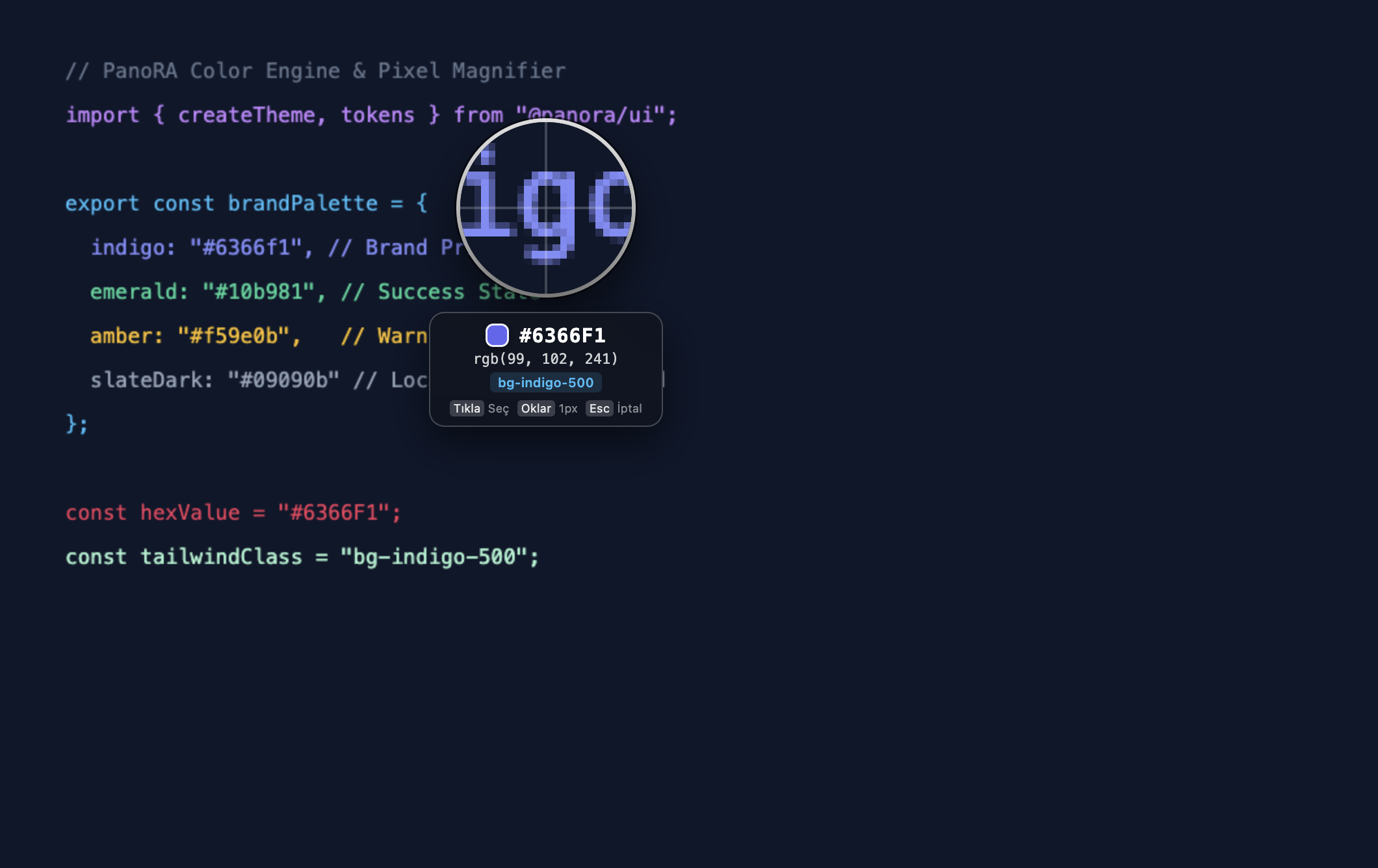
| Color Loupe (Magnifier) | ⌘ + ⇧ + C / Ctrl+Shift+C | 10x pixel grid loupe; copies HEX, RGB, HSL, and closest Tailwind CSS class. |
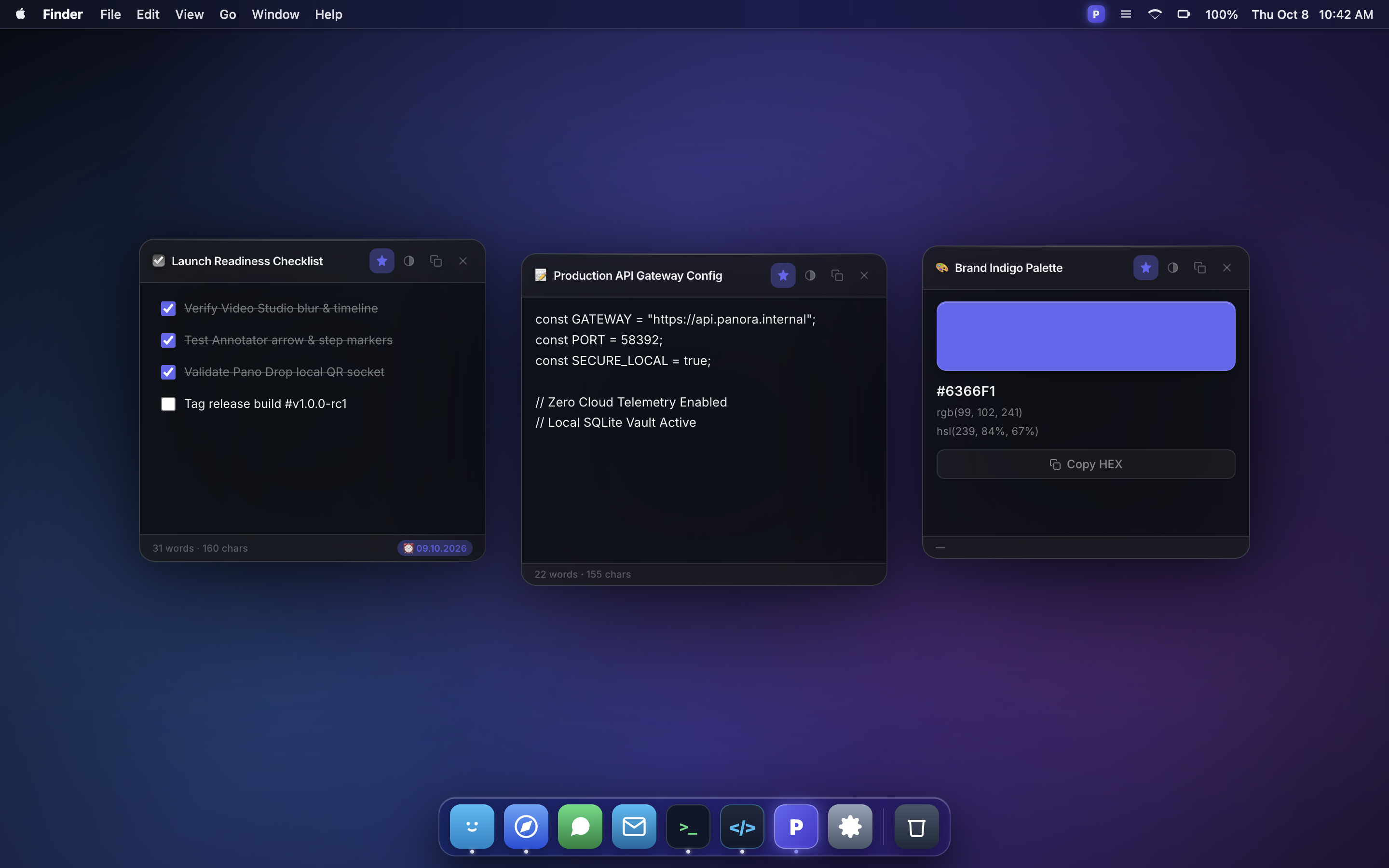
| New Sticky Note | ⌘ + ⇧ + N / Ctrl+Shift+N | Spawns an always-on-top quick note card on your desktop. |
Main HUD & Card Stream
The desktop HUD brings together all your captures, copied code, links, color swatches, and audio notes in a fast, searchable stream.
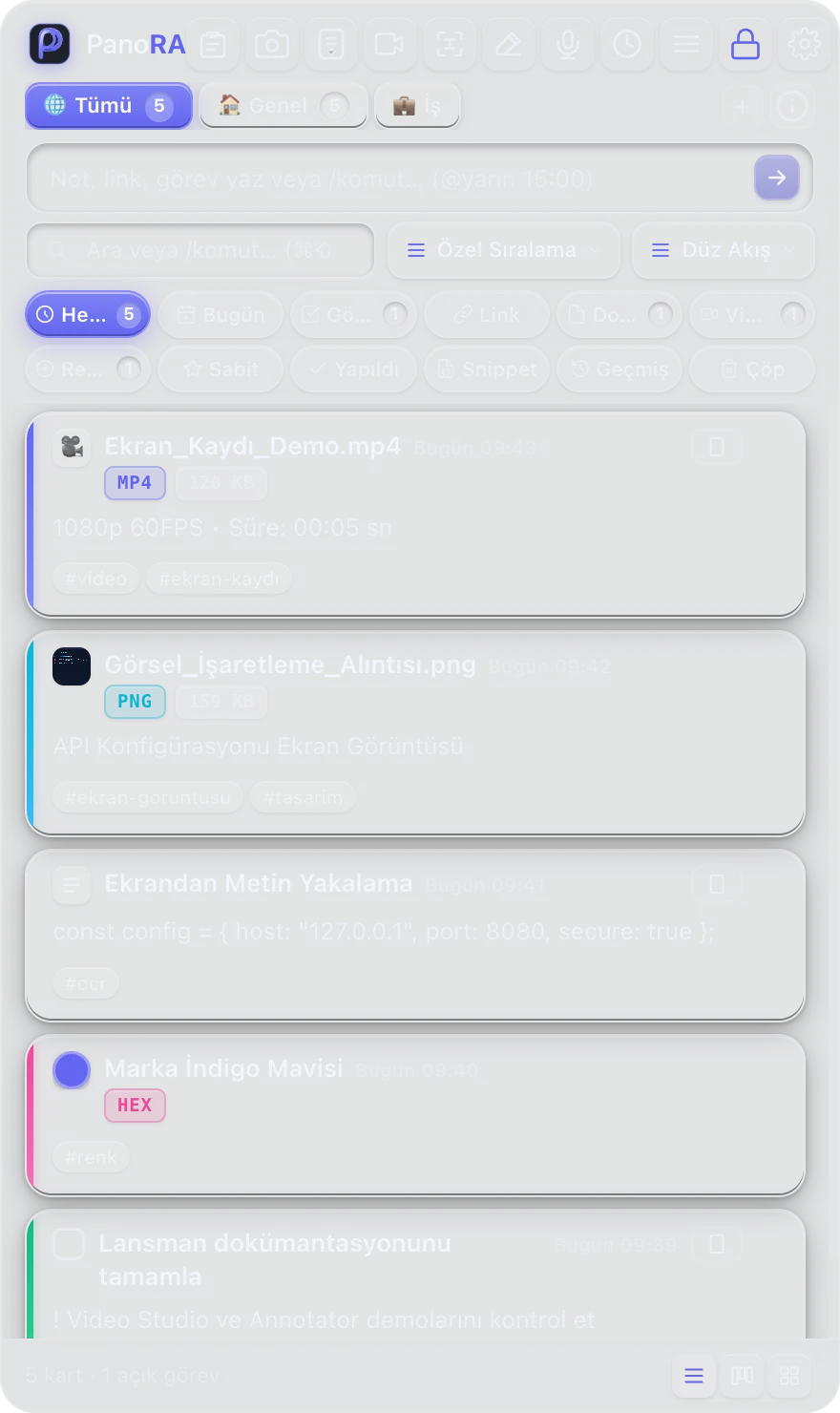
Core Capabilities:
- Smart Filtering: Switch instantly between All Cards, Today, Tasks, Links, Files, Videos, and Colors.
- Pinning & Archiving: Pin important reference items or archive completed tasks with a single hotkey.
- Direct Paste: Hit Enter on any card to paste its content directly into your active editor or chat.
Screenshot & Annotator Canvas
Turn screenshots into crystal-clear bug reports, technical documentation, or client guides without opening heavy graphic software.
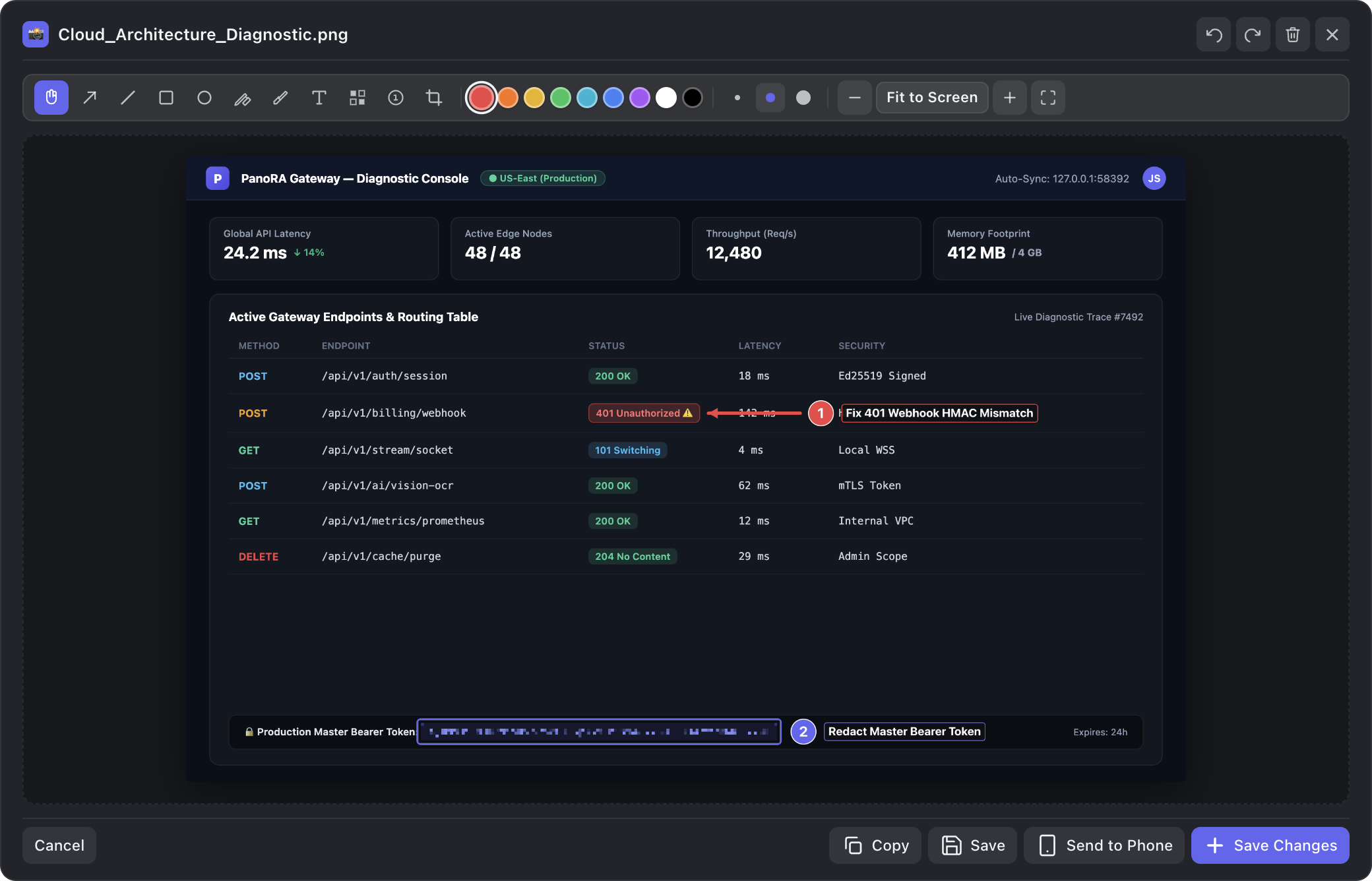
Toolbar Features:
- Sequential Step Counters (1, 2, 3…): Click anywhere to drop numbered badges that auto-increment.
- Precision Directional Arrows: Pixel-aligned, smooth bezier guidance arrows.
- Mosaic Blur Brush: Redact confidential passwords, tokens, or email addresses instantly.
Apple Vision & Windows OCR (Text Extraction)
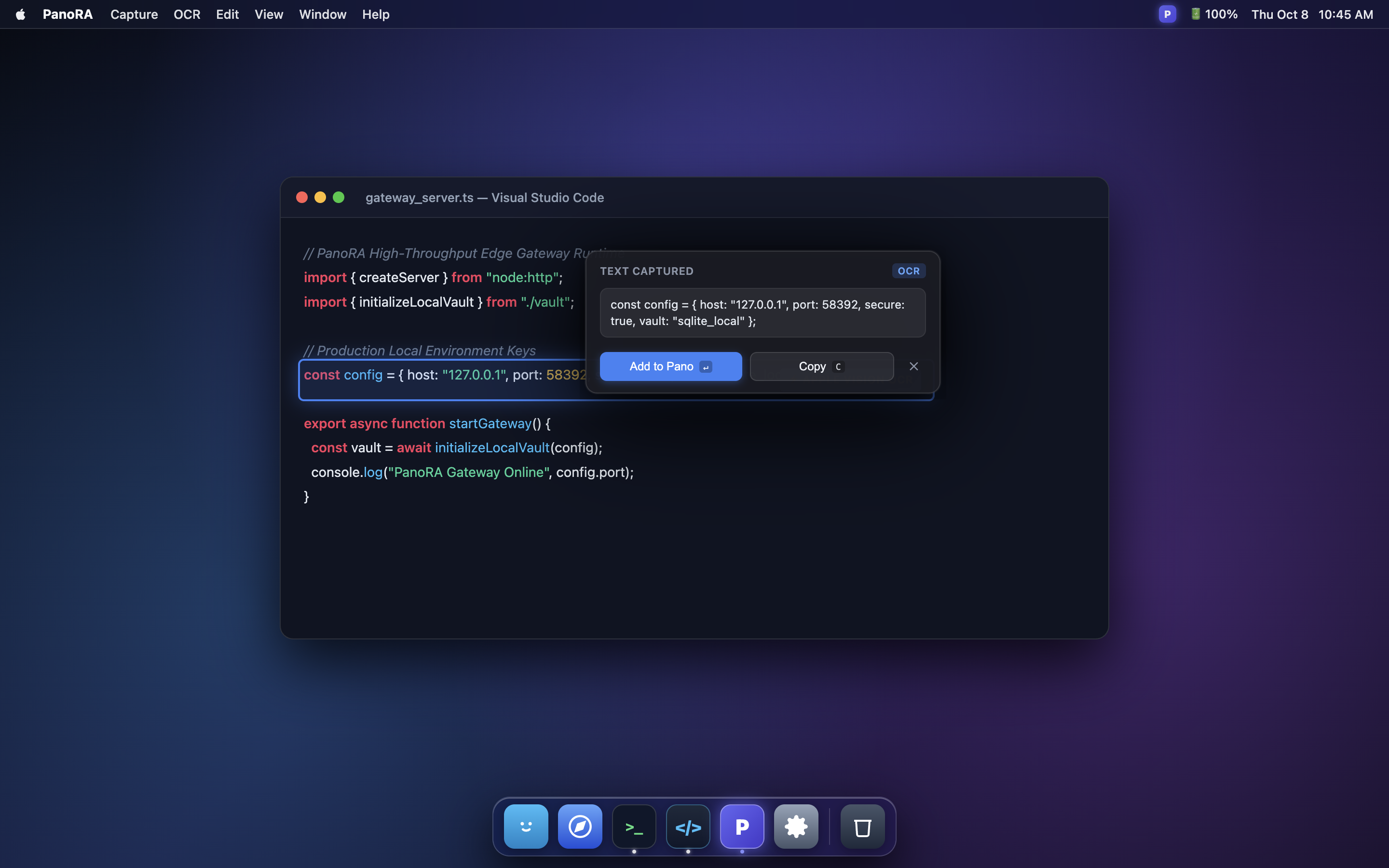
Extract unselectable text from videos, slide decks, error dialogs, or locked PDF viewers with native on-device machine learning.
Scrolling Capture & Auto-Stitching
Capture extensive architecture diagrams, long code files, or entire web threads into a single seamless vertical image.
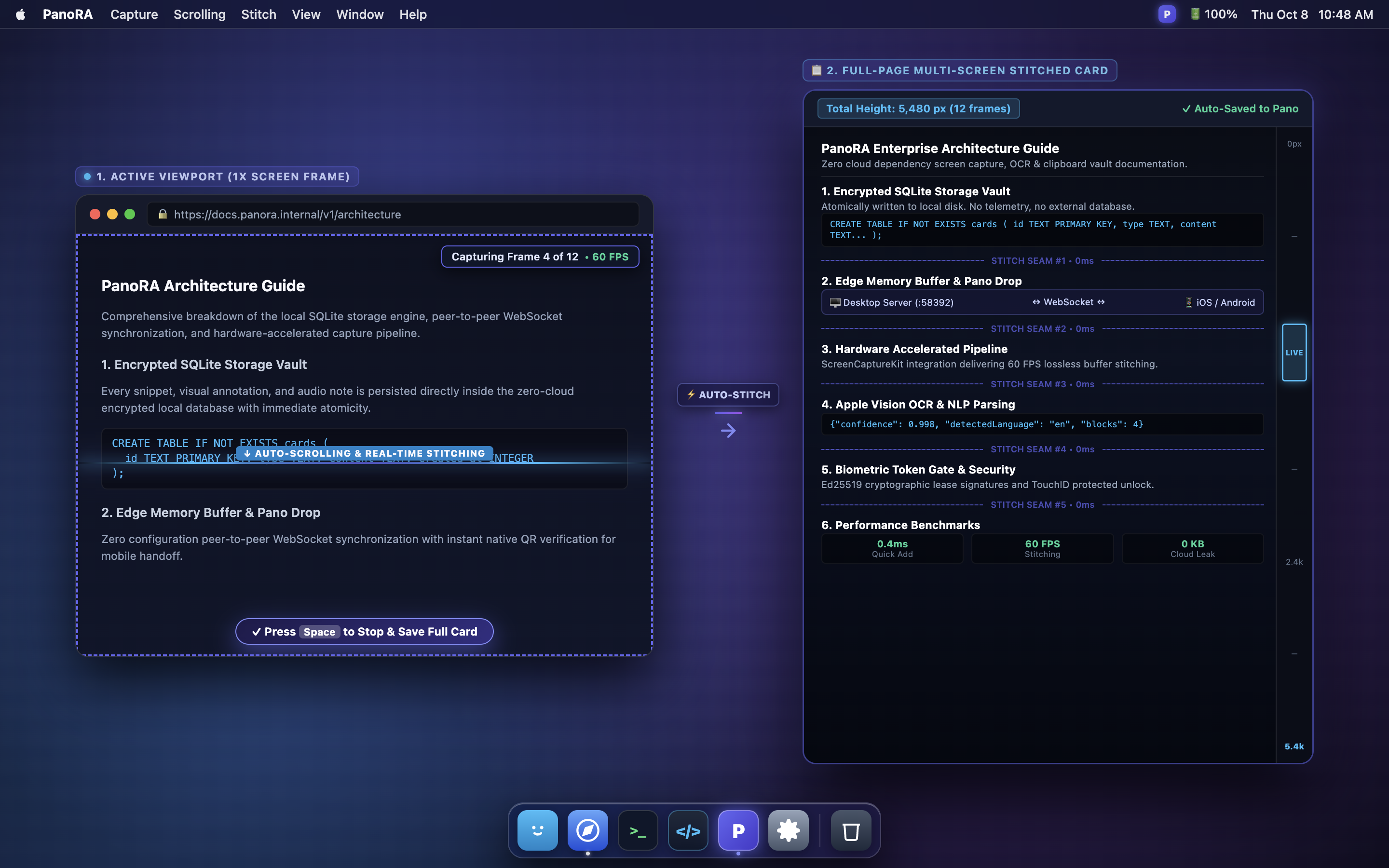
How to Use:
- Press
⌘⇧X(orCtrl+Shift+X) and select the target window area. - Scroll the page downward slowly; PanoRA computes real-time visual overlaps on the right.
- Press Space or Enter to finish; the stitched image is instantly added to your cards.
Video Studio Pro (60 FPS & Mosaic Redaction)
A lightweight, GPU-accelerated video editing suite that opens immediately after stopping a screen recording.
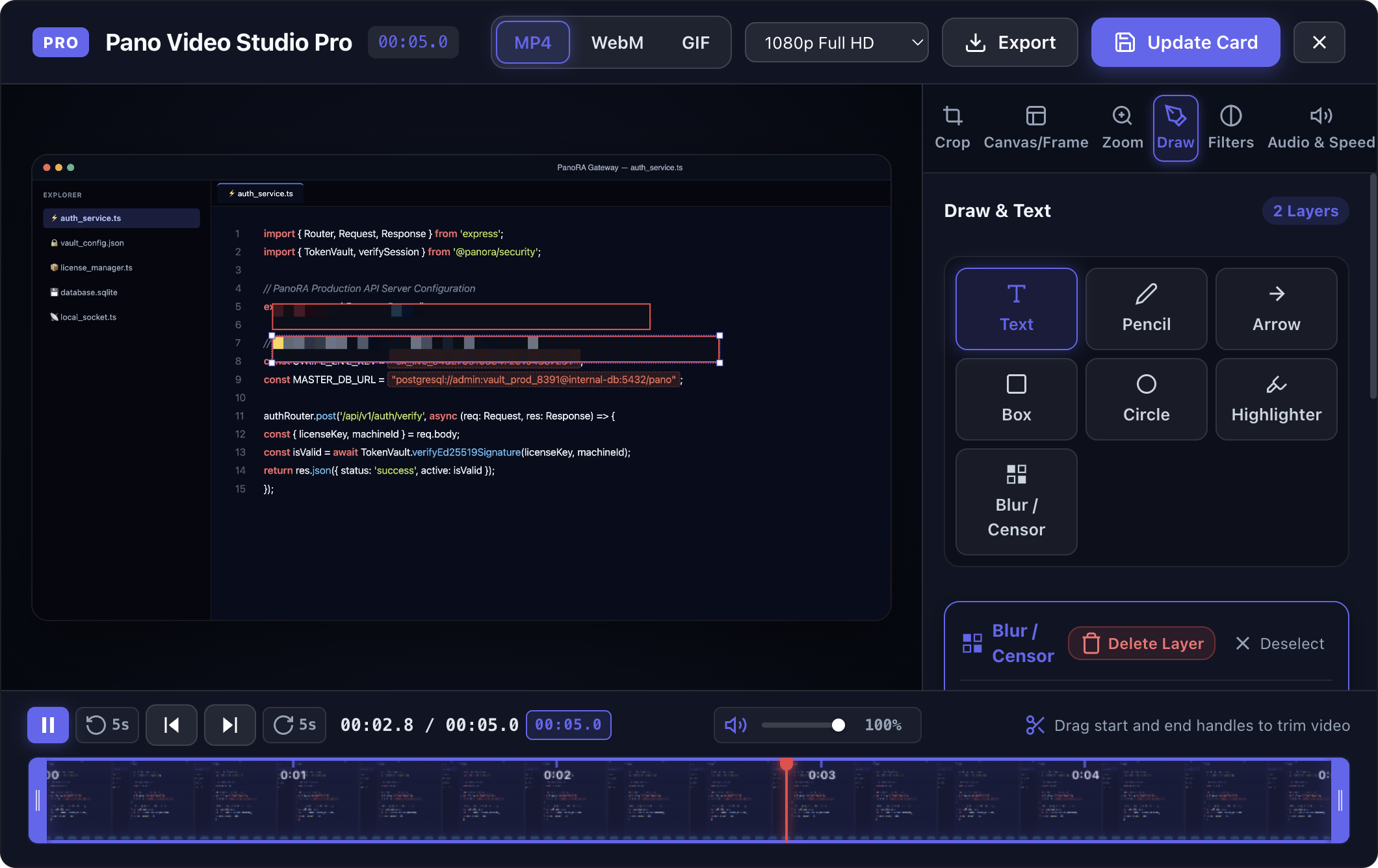
Highlights:
- Instant Trimming: Drag start and end handles to discard dead air or unwanted seconds.
- Time-Bounded Mosaic Redaction: Place blur boxes on sensitive screen areas active only between specific timestamps.
- Multi-Format Export: High-efficiency MP4, WebM, and lightweight animated GIF outputs.
Pixel Loupe & Color Codes
Inspect and extract any pixel on your desktop with a 10x magnified pixel grid and real-time contrast calculations.
Desktop Sticky Notes (Always-on-Top HUD)
Floating, color-coded, markdown-supported quick note cards that stay pinned above your active workspace.
Pano Drop (Local Wi-Fi Bridge)
The fastest and most secure method to transfer cards, screenshots, or files from your Mac/PC to your phone or tablet.
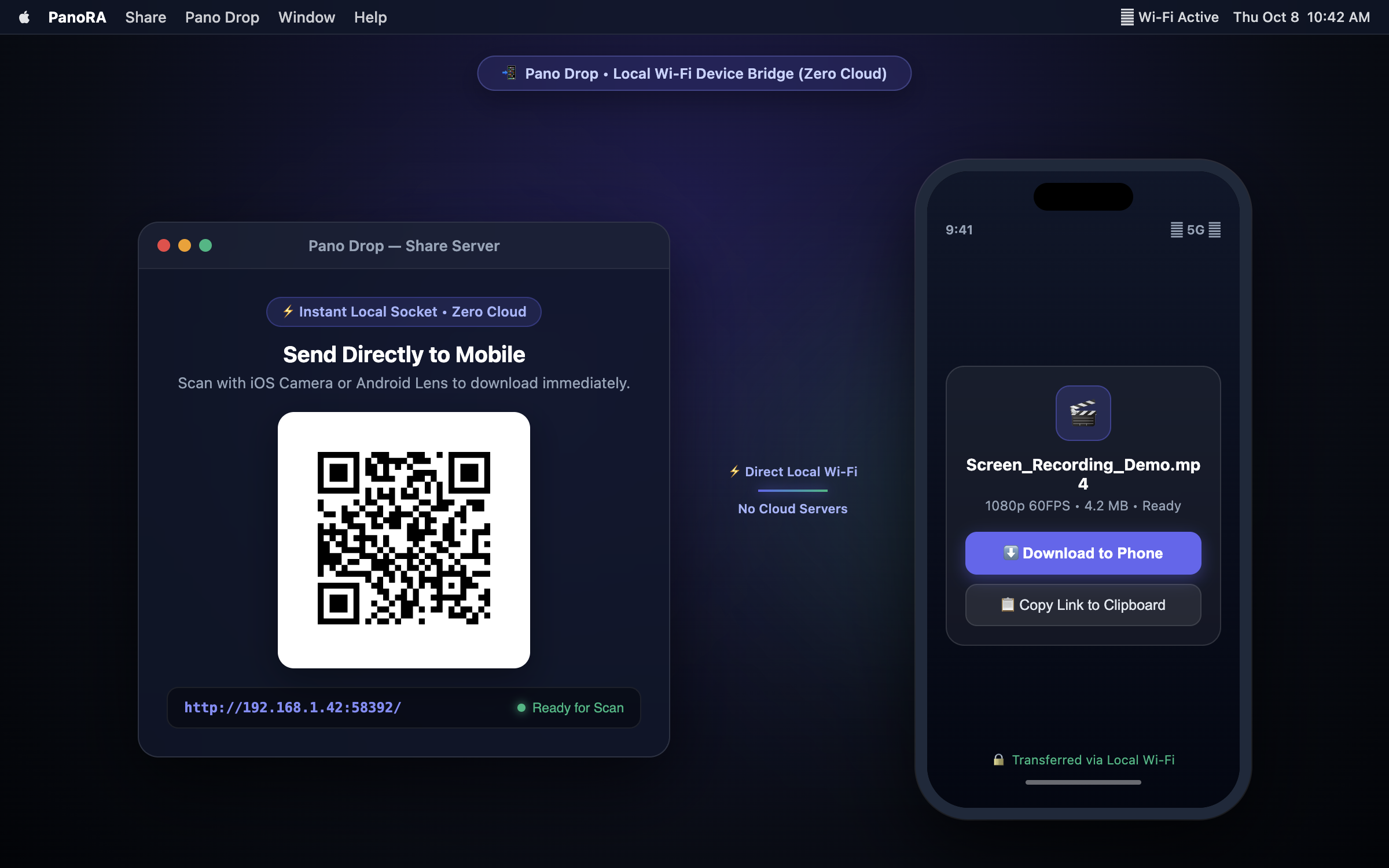
Ephemeral QR Pairing & P2P Security Protocol
Pano Drop establishes a cryptographically verified, dynamic, and temporary bridge over your local Wi-Fi subnet.
Random Port & Session Token Generation
Opening Pano Drop allocates a random local socket (e.g. ws://192.168.1.42:52819?token=a8f9b…) and embeds this ephemeral address into the displayed QR code.
Local Subnet Handshake
Scanning the QR code connects your mobile browser directly to your workstation over local LAN without touching third-party routing servers.
Bidirectional P2P Stream & Automatic Teardown
Files transfer at full Wi-Fi bandwidth speeds (100–300 Mbps). Closing the window immediately destroys the socket and purges all memory buffers.
Zero-Cloud & Data Privacy Guarantee
PanoRA is engineered to adhere to strict enterprise security and individual privacy standards.
Zero Telemetry
Contains zero tracking libraries, third-party analytics SDKs, or background crash reporters.
Airplane Mode Ready
Every single capability (including OCR, Video Studio, and Annotator) runs 100% offline.
Portable Open JSON Format
No vendor lock-in. Your data is your property and can be backed up or parsed by standard tools anytime.
Memory Management & Hardware Performance
Leveraging GPU hardware acceleration and native OS capture utilities, PanoRA eliminates the bloated memory overhead common in typical Electron apps.
| Component | Underlying Engine | Idle Memory | Active Performance |
|---|---|---|---|
| Main Desktop HUD | Virtual Canvas & Memory Pool | ~38 MB RAM | < 0.4ms Latency / 120Hz Smooth List |
| Screen Capture Engine | Native CLI & DesktopCapturer | 0 MB (On-demand) | 60 FPS Zero Frame Drop |
| Video Studio Editor | GPU Canvas Acceleration | 0 MB (On-demand) | Real-time Mosaic Blur & Trimming |
| OCR Text Engine | Apple Vision / Windows Media OCR (Offline) | 0 MB (On-demand) | ~120ms / 4K Screen Text Parse |
Local Storage & Data Schema
PanoRA stores all cards and configuration in transparent, portable formats:
{
  "id": "card_9a8b7c",
  "type": "screenshot",
  "timestamp": 1728403200000,
  "title": "Visual_Annotation_Proof.png",
  "content": "API Configuration & Security Architecture",
  "tags": ["#screenshot", "#design", "#vault"],
  "metadata": {
    "dimensions": { "width": 2880, "height": 1800 },
    "fileSizeKB": 159.4,
    "ocrText": "const config = { host: '127.0.0.1' };"
  },
  "isPinned": true,
  "isEncrypted": true
}
Frequently Asked Questions (FAQ)
Does PanoRA work without an internet connection?
Yes, 100% offline. On-device OCR, video editing, screenshot annotation, and Pano Drop local Wi-Fi transfers require zero internet access.
Is there a monthly or recurring subscription?
No. PanoRA operates on a One-time Lifetime License model. There are no recurring subscription fees or hidden renewals.
Does it drain laptop battery or CPU?
When idle in the background, PanoRA consumes ~38 MB RAM and less than 0.1% CPU. Heavy GPU operations only engage during active captures and edits.
How do I open PanoRA on macOS on the first launch?
Because PanoRA is distributed directly outside the Mac App Store to avoid the 30% store markup, macOS Gatekeeper may show a verification notice on the very first launch. Simply Right-Click (or Control + Click) PanoRA in your Applications folder, select "Open", and click "Open" to confirm. This 5-second step is only required once!
Troubleshooting & Permission Reset (macOS & Windows)
Step-by-step resolution guides for system permission caches and network rules across both platforms:
🍎 macOS Troubleshooting
If macOS Sequoia/Sonoma permission cache becomes stale after an OS update, reset TCC permissions via Terminal:
# 1. Reset Screen Recording Permission
tccutil reset ScreenCapture com.panora.desktop

# 2. Reset Accessibility (Global Shortcut) Permission
tccutil reset Accessibility com.panora.desktop

# 3. Relaunch PanoRA and approve the system prompts
🪟 Windows 10 & 11 Troubleshooting
Screen Capture Privacy Settings
Ensure Windows Graphics Capture permission is enabled for desktop applications:
Start → Settings → Privacy & Security → Screenshots and App Windows: On
Windows Defender Firewall Rule (Pano Drop)
To allow Pano Drop to communicate with mobile devices on private LAN, create an inbound firewall rule using Administrator PowerShell:
New-NetFirewallRule -DisplayName "PanoRA Local Wi-Fi Bridge" -Direction Inbound -Program "$env:LOCALAPPDATA\Programs\panora\PanoRA.exe" -Action Allow -Profile PrivateElevated UAC Shortcut Conflicts
When an elevated application (e.g., Visual Studio Run as Administrator) is in foreground, Windows may suppress standard user shortcuts. In this scenario, launch PanoRA as Administrator as well.